Skip to content

HotelAI

by OpOne

The hotel’s whole day.
On one screen.

A hotel desktop that works together with Sistem Otel. When the computer starts, a full-screen board opens: messages, tasks, cash and approvals on the shared screen of reception and the manager.

A hotel morning

  1. The day begins.
    The manager is on the floor.

    The manager checks the messages on their tablet. The hotel is waking up.

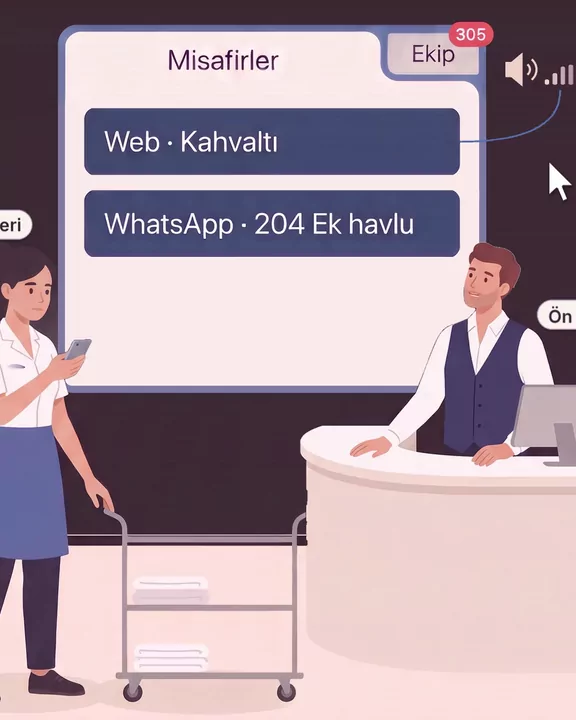
  2. The first messages arrive.
    From the web. From WhatsApp.

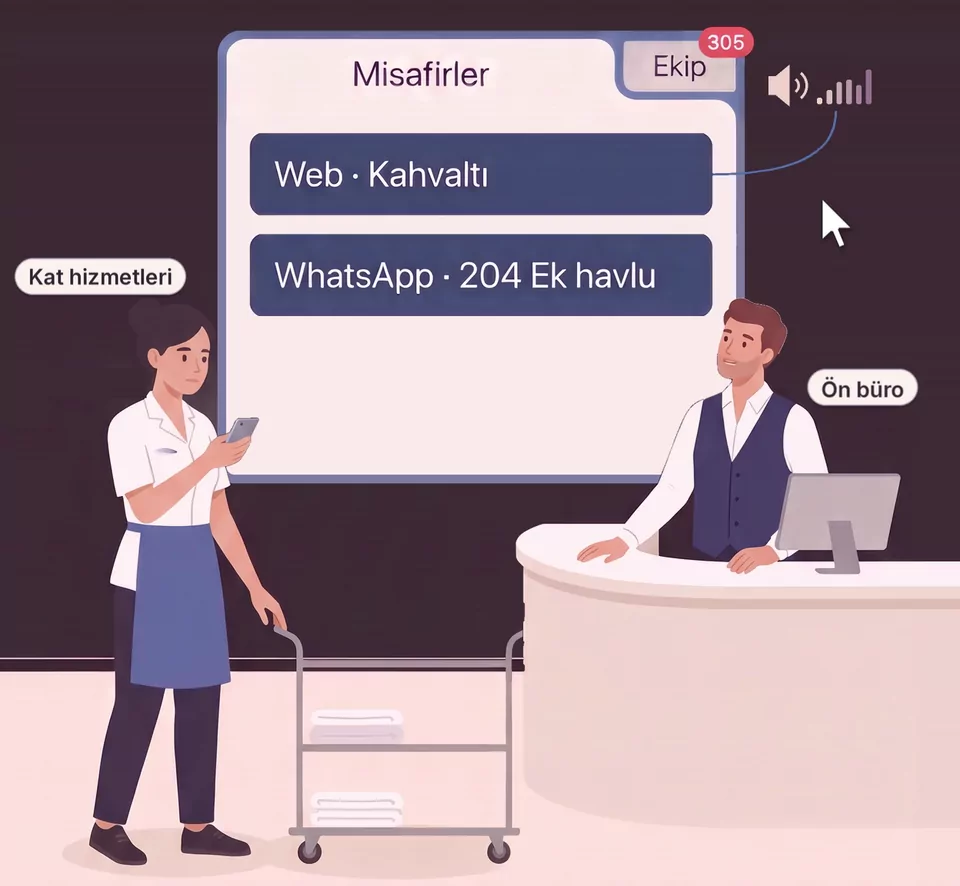
    “What time is breakfast?” “204 · Could I have an extra towel?”

  3. Housekeeping is in the corridor.
    Phone in pocket.

    Room 204’s towel should reach them. But the message stayed at reception.

  4. The front desk is at the counter.
    The team is in another group.

    The “305 · Cleaning complete” note is in a different chat.

  5. Everyone is working.
    Information is scattered.

    Seven channels, three roles, separate screens. Nobody sees the whole picture.

  6. All the messages.
    One hub.

    HotelAI gathers guest and team messages in a single list.

The film tells a sample hotel morning; the people and messages are samples and contain no real guest data.

HotelAI reduces the operational load on hotel teams while raising guest satisfaction. With faster replies, orderly requests and central management, it gives hotels a more professional service.

A message arrives.
You approve.

  1. Message
  2. AI draft
  3. Human approval
  4. Task
  5. Sistem Otel note
Messages sample data
  • ÖKRoom 503 · Ö. K.What time can we check in? Child bed…
  • SAFront desk · S. A.503 family with a child, arriving today.
  • BBooking · Room 503The guest reported a late arrival: 23:30.
  • KHHousekeeping groupH. Y.: 214 awaiting inspection, 410 ready.photo-410.jpg
  • WWeb form · contactIs there an airport transfer? Our flight lands at 18:40.
  • EExpedia · R-251023Change request: 3 nights instead of 2 nights.
  • ŞACompany A · corporateWe request a group rate for 6 rooms for November.request-november.pdf
  • YManagement groupRequest: Company A group rate · awaiting approval
  • KÇMaintenance group · K. Ç.The air conditioning compressor in 209 is being replaced tomorrow morning.
ÖK Room 503 · Ö. K.WhatsApp · R-248317 · 2 adults, 1 child

Today 14:31

Hello, what time can we check in? Will the child bed be ready?

booking-confirmation.pdfAttachment · 84 KB
AI is preparing a reply
✦ AI draft · awaiting approval Hello, check-in time is 14:00. We will let you know here as soon as your room is ready; the child bed will be set up in your room. Have a good trip. Basis: latest message + R-248317 + hotel info card

Human approval · sample re-enactment: front desk pressed Approve

Hello, check-in time is 14:00. We will let you know here as soon as your room is ready; the child bed will be set up in your room. Have a good trip.Sent · 14:33 · approved by: front desk

Task opened: Room 503 · set up child bed · Landed in the housekeeping group

photo-503.jpgHousekeeping · H. Y. · task completed · 14:52

Entered into Sistem Otel · R-248317 · “Child bed set up”

WhatsApp, Booking, Expedia, email, web form, staff and groups in a single list. The AI prepares the reply draft; no message goes out without your approval.

Front desk

Spot differences and sell.

CHECKS · WITH SISTEM OTEL

Run every reservation through the checks you choose.

On every reservation HotelAI compares the room status, payment type and cash with what is on the floor. A row that doesn’t match is reported to the front desk at once, and checked again once the difference is closed.

Sample Hotel · sample data

42 reservations read from Sistem Otel.

Room, payment and folio are checked on every row.

Room 214: empty in the system, guest in the room.

A notification goes to the front desk at once.

The correction is made in Sistem Otel, and HotelAI checks again.

AVAILABILITY · WITH SISTEM OTEL

Take blocks into account, sell more rooms.

Choose the date, nights and number of guests. HotelAI takes the blocks in Sistem Otel into account; it shows rooms available for the whole stay, the upgrade option and a priced quote on the same screen.

Sample Hotel · sample data

Choose the date, nights and guests on the calendar.

Blocked rooms turn grey, with the reason written.

Rooms available for the whole stay are listed with a priced quote.

The AI rearranges the blocks, and the rooms you can sell increase.

Guest

AI draft, language and quote.

GUEST · AI DRAFT

The AI gets to know the guest, prepares the message, you approve.

The AI gathers the guest’s earlier details and puts them in front of you. Reservation, request and previous correspondence together; a reply draft is prepared for every message, and no message goes out without your approval.

Sample Hotel · sample data

The guest writes at night; the message waits until morning.

The AI recognizes the guest: reservation, request and history are in front of it.

The draft is written with the reservation details.

No message goes out without your approval.

A day plan goes to the guest on WhatsApp.

LANGUAGE

Reply to the guest in whatever language they write in.

If the guest wrote in German, the AI prepares the reply draft in German. The staff’s short text is also translated into the language you choose; it doesn’t go out without your approval.

Sample Hotel · sample data

The guest writes in German, Russian or Arabic.

The draft is prepared in the guest’s language.

Staff write in Turkish, and the text is translated into the guest’s language.

No message goes out without your approval.

QUOTE

Send a guest who asks about price a quote with photos.

The guest writes “3 nights, two adults and a child, how much?” The AI prepares a one-page quote with room photos, and it goes to the guest once you approve.

Sample Hotel · sample data

The guest asks about price, and availability is read from Sistem Otel.

A PDF quote with photos is prepared; it doesn’t go out without your approval.

Team

One app, photo proof, a trail.

TEAM · ONE APP

Bring the whole team into one app, close every job with a photo.

A task lands on the person responsible and their team at the same time. When staff finish the job they add a photo from their phone, and the proof stays on the room record.

Sample Hotel · sample data

The task lands on the person and the team at the same time.

Tapping “Seen” turns the row yellow.

“Completed” does not open without a photo.

When it is completed, the front desk sees green.

It stays in the room history with the proof photo.

TEAM · EVERY ACTION RECORDED

Keep a record of tasks, approvals and room movements.

Who took the task, when they finished it, who approved the discount: the answer is always on the screen. A break and a room fault also enter the record with one tap.

Sample Hotel · sample data

Staff go on break with a single tap on the phone.

The shift strip shows who is on break.

A room out of order lands on the maintenance team as a task.

Who, when, which room: every action stays on the timeline.

PHONE AND DESKTOP

Reach it from the desktop and from the phone.

Staff open their task on the phone and upload their photo; the job shows on the shared desktop screen at the same moment. The manager sees pending approvals on their phone and decides.

Sample Hotel · sample data

Approvals are listed on the desktop.

The manager approves from the phone.

Staff add the photo from the phone, and it appears on the desktop.

When the job is done, the same row turns green on both screens.

Management

Screen layout, reports and rules.

HOTELAI DESKTOP · FULL SCREEN

Turn on the computer and your work screen is ready.

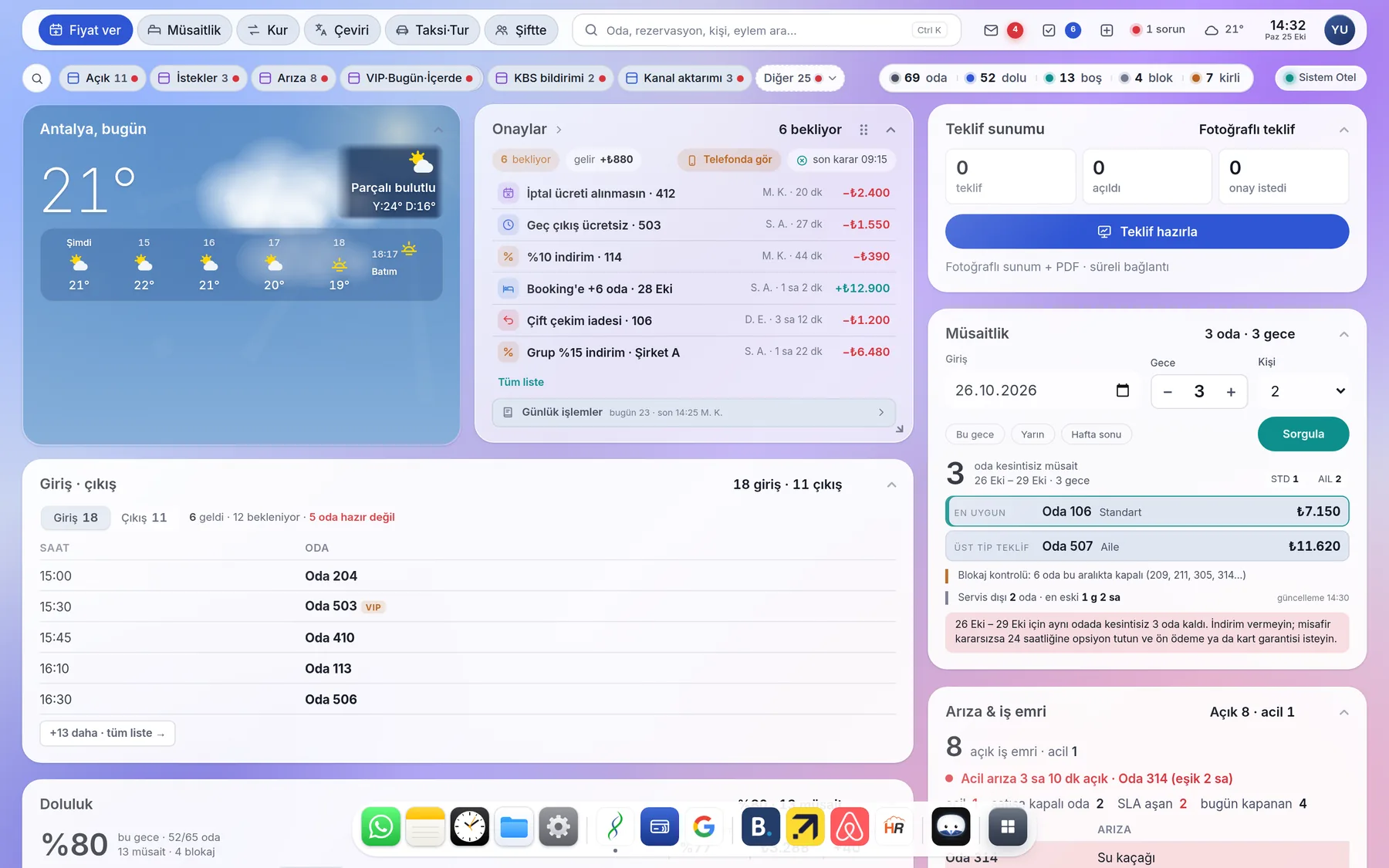
When you log in, HotelAI opens as a full-screen board; Windows stays behind. Quick actions and search sit at the top, filled boxes in the middle, the app bar at the bottom. The Sistem Otel connection shows in the chip row.

Sample Hotel · sample data

When the computer starts, a full-screen board opens.

Quick actions at the top, filled boxes in the middle, the app bar at the bottom.

Pressing a box opens a detail window.

Sistem Otel opens from the bar, and its records do not change.

APP BAR

All channels and apps on a single bar.

WhatsApp, Notes, Clock, Files and Settings; Sistem Otel, Room card and Google; channels such as Booking and Expedia, Airbnb and HotelRunner; the assistant and Windows. All of them open with one click from the bar at the bottom of the screen, and the board stays behind.

HotelAI desktop demo: at the top the buttons Quote a price, Availability, Setup, Translation, Taxi-Tour, Shift, and search; in the chip row the room counts and the Sistem Otel badge; below them the weather, approvals, quote presentation, arrivals and departures, availability and fault boxes; at the very bottom the app bar
App bar: WhatsApp, Notes, Clock, Files, Settings; Sistem Otel, Room card, Google; channels such as Booking and Expedia, Airbnb, HotelRunner; assistant; Windows

The screens are taken from the HotelAI demo; the hotel, people and amounts are samples.

SWITCHING TO WINDOWS

Windows is next to you with one click when you need it.

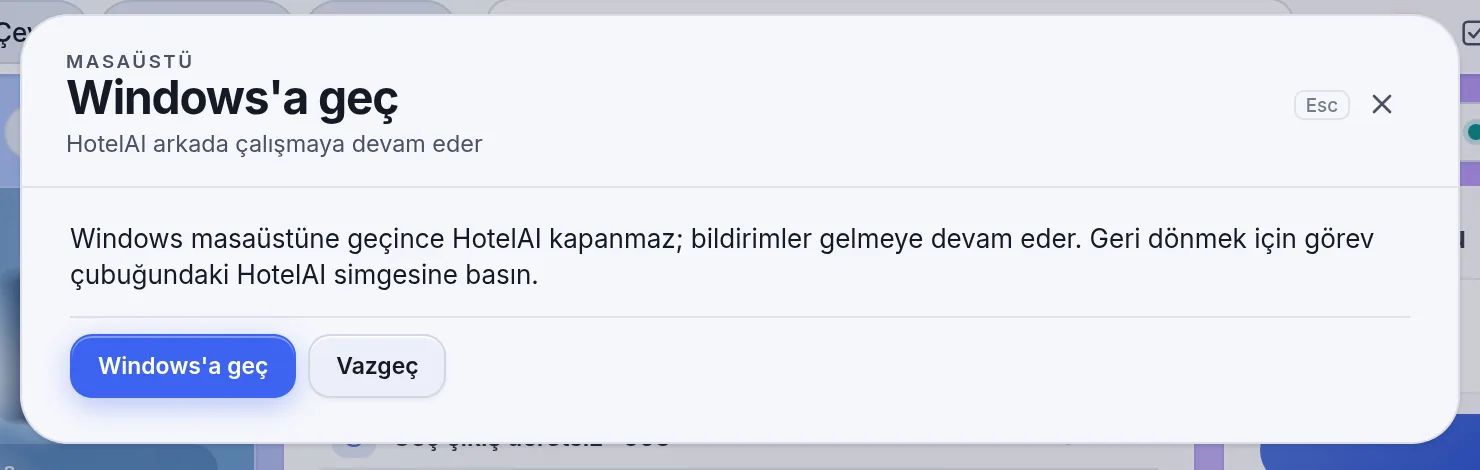
Press the Windows (Win) button at the end of the bar, a confirmation window opens, and you switch to the Windows desktop. HotelAI does not close; notifications keep coming. To go back, press the HotelAI icon on the taskbar.

Switch to Windows window: when you switch to the Windows desktop HotelAI does not close and notifications keep coming; to go back, press the HotelAI icon on the taskbar; the buttons Switch to Windows and Cancel

ROLE AND PERSON

Let everyone see their own screen.

Front desk, housekeeping and the manager each see their own screen on the same computer. Beside every employee is an AI helper set up for their own job.

Sample Hotel · sample data

Same computer, three roles: the screen opens by role.

Front desk, housekeeping and the manager see their own screens.

The revenue box opens only for an authorized role.

The team picks the glass or plain theme.

Every employee has their own AI helper.

REPORT AND PRESENTATION

Write the report you want, and the AI prepares the presentation.

You write “last month’s channel mix and cancellation reasons”. The AI reads the data and gathers the charts and short comments into a single presentation.

Sample Hotel · sample data

You write the report you want in plain language.

The AI prepares the presentation, and you approve before it is shared.

AUTOMATION

Write one sentence, and the work runs by itself.

You write “if someone asks for a late check-out, ask the manager, and if approved tell housekeeping”. The rule is shown to you before it runs, and it takes effect when you switch it on.

Sample Hotel · sample data

You write in one sentence what to do when something happens.

The rule is shown to you, and a risky step needs human approval.

And the details that
help on every shift.

The cuttings below are taken from the HotelAI demo, from its real screen. Each is the relevant region of a single window; the text is at a readable size.

Cleaning checkpoints

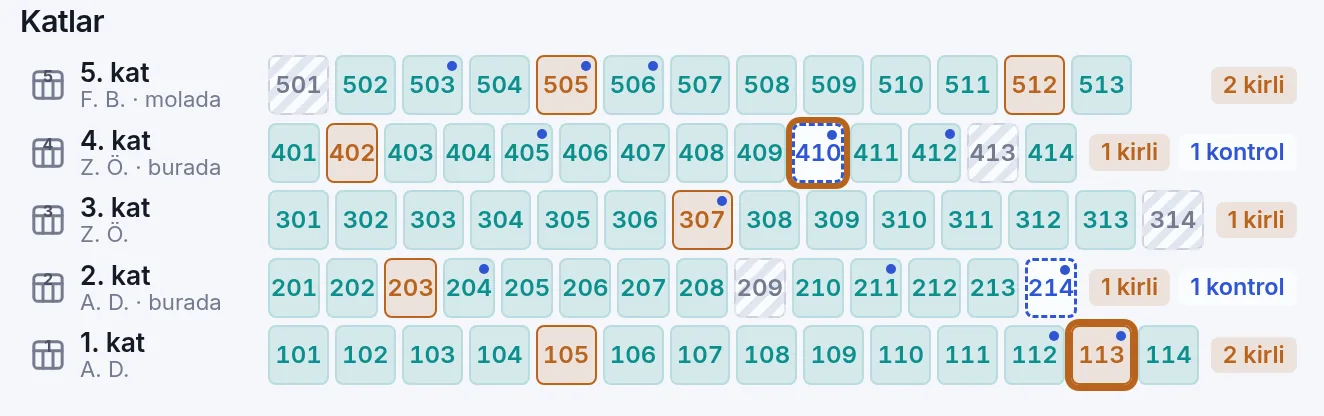
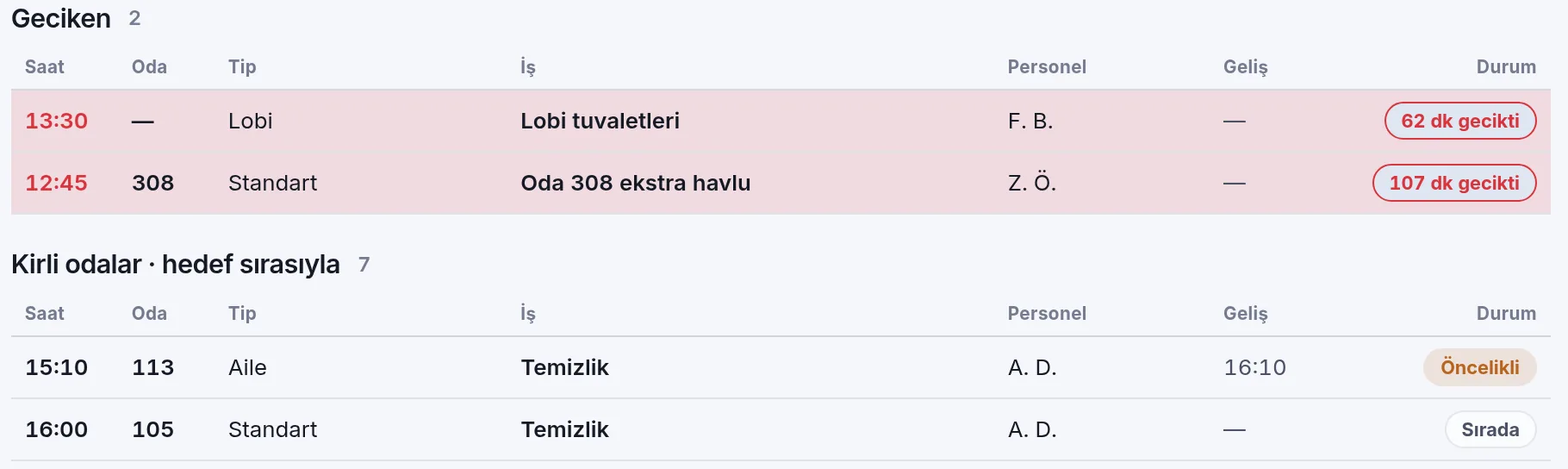
See room status and timed jobs floor by floor in a single list. Spot late tasks early; close finished work with the staff’s photo proof.

Cleaning window, Floors: the room numbers of five floors, each room marked by status: clean, dirty, awaiting inspection, blocked
  • clean
  • dirty
  • awaiting inspection
  • blocked
Cleaning window, Late: two jobs on red rows, 62 and 107 minutes late; below them the dirty rooms in order of target

A job more than 15 minutes past its target turns red; whose job it is and how many minutes late it is are written on the row.

End-of-day assistant

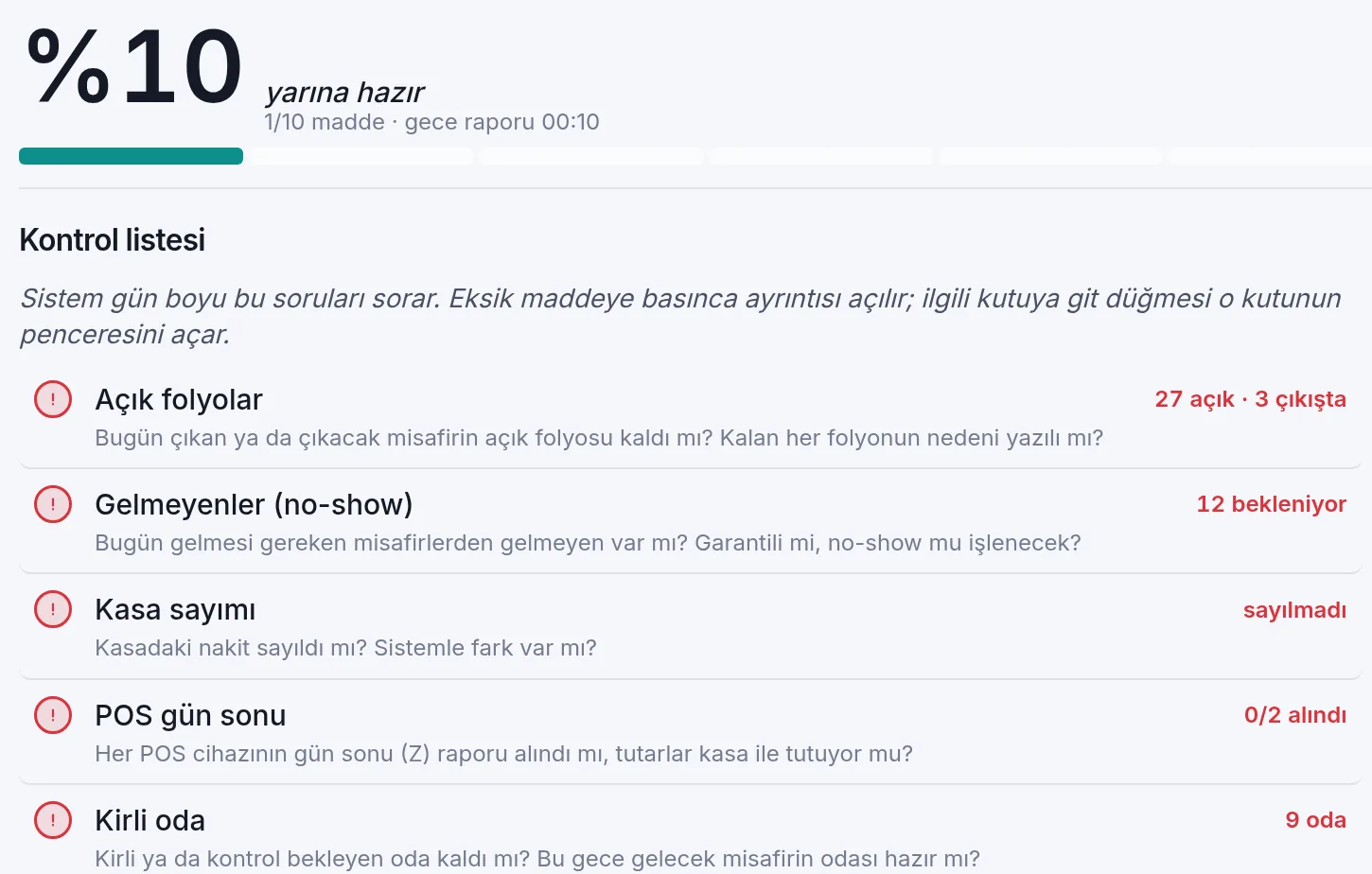
Keeps the questions that build up through the day and the checklist together. At the end of the shift see the pending jobs and the “ready for tomorrow” status; it becomes clear what is left for the night.

End-of-day window: the ready-for-tomorrow percentage and the checklist; open folios, no-shows, cash count, POS end of day
  • 10% ready for tomorrow: 1 of 10 items done
  • Red item: incomplete, with how much is left beside it
  • The system asks: its question is written under every item
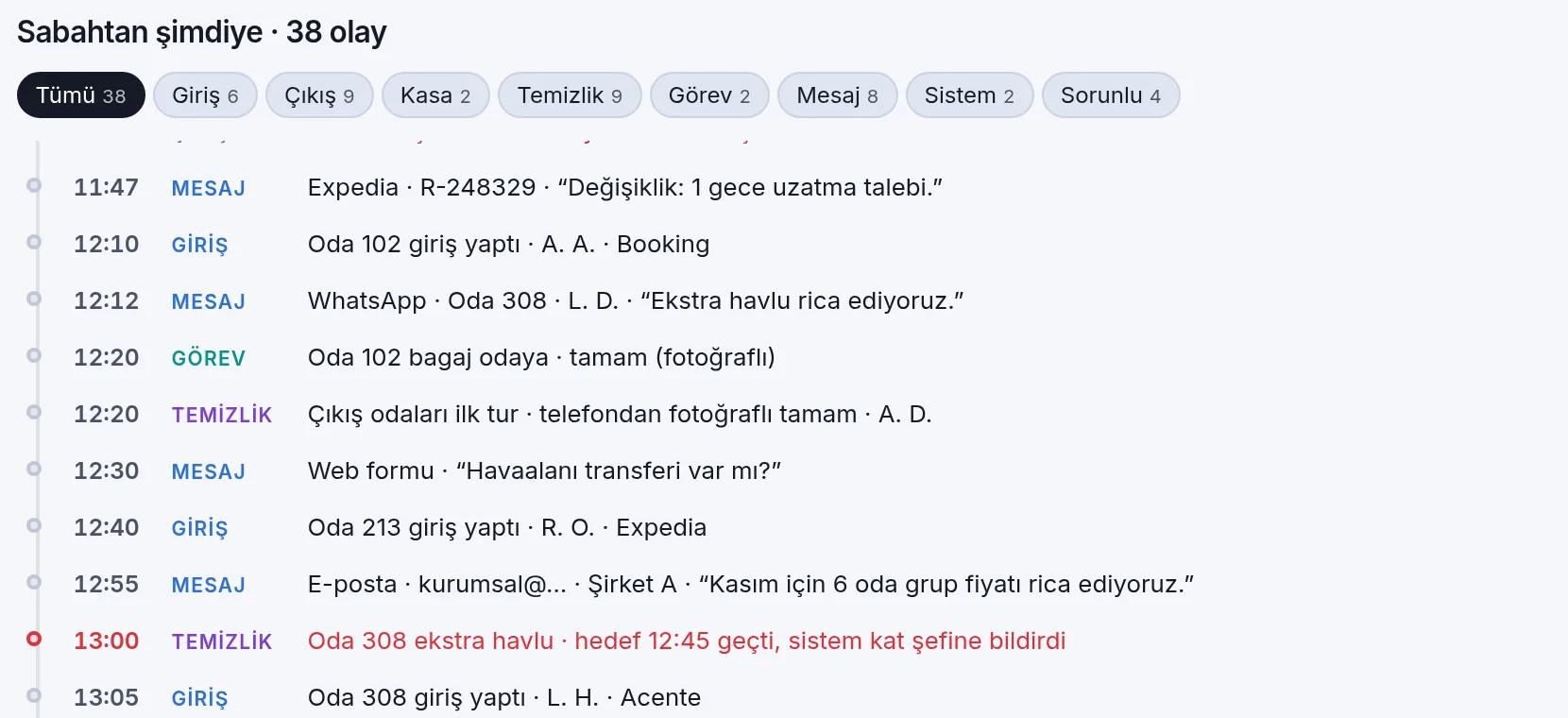
End-of-day window, From morning until now: the hour-by-hour flow of 38 events; arrivals, messages, tasks, cleaning

38 events flow hour by hour from morning until now; a late job is marked with a red row.

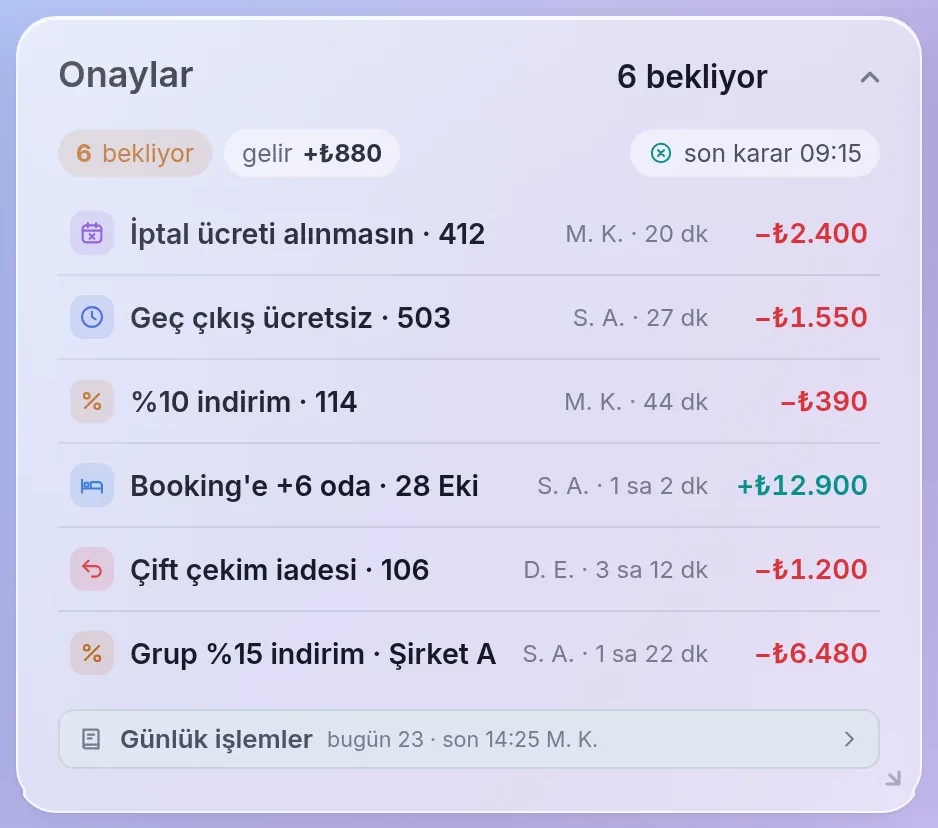
Approvals box: six pending decisions, each with its revenue impact; cancellation fee, late check-out, discount, adding a room to Booking

Manager approval, with revenue impact

Let pending decisions be listed with the amount: to whom, how much, in which room. See the revenue impact first, then decide.

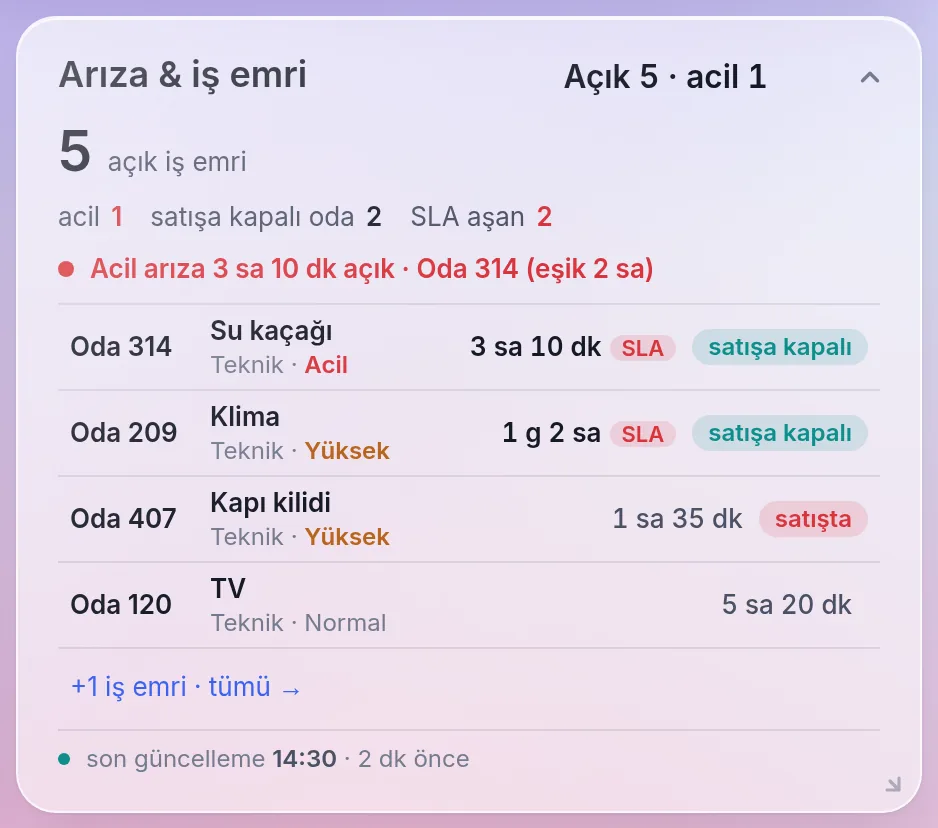
Faults and work orders box: five open work orders, one urgent; Room 314 water leak past SLA, closed to sale

Faults and work orders

Open jobs, urgency and overdue time together. Is a faulty room closed to sale or open? Let reception know at a glance.

Setup and backup are on us

The server (VPS), domain name, company email and backup are in the setup package. We prepare the environment for your hotel; your PMS remains the single source of reservation, folio and invoice data.

24/7 visibility. 21 days of watching together.

Open messages, tasks, approvals and shift handover show on the same screen; even as the team changes between night and day, where the work stands is not lost. For the first 21 days it follows the flow with your team, finds the pending steps, and we set things up to your hotel’s routine. The team picks the work up where it was left without asking the same thing again.

The classic setup.
With HotelAI.

The classic setup: PMS, messaging groups and spreadsheets. HotelAI does not drop the PMS; it completes the missing layer.

Comparison of the classic setup and HotelAI
FeatureClassic setupPMS + message groups + spreadsheetWith HotelAIYour PMS + HotelAI
Reservation, folio, invoice in the PMSYesYesStays in the PMS
All guest messages in one listNoYes
AI reply draft, goes out with human approvalNoYes
Messaging for people and groups made for the hotelPartlyin personal phone groupsYes
Task lands on the person and group, closes with a photoNoYes
Note, task result and approval entered into the PMSPartlyif typed by handYesEntered into Sistem Otel, its trail is visible
Shadow report: comparing the PMS with the real situationNoYes
Open folios with the reason and who opened themPartlyon separate report screensYes
Manager approval with revenue impactNoYes
Upgrade and price suggestion in availabilityPartlyYesupgrade, price and quote with photos
Documents from the phone, read by AINoYes
Role gate on the shared screen and a short lockPartlyYes

The classic setup does not describe a specific product, but the way hotels commonly work.

A reception day.
Before and after.

How do the steps and waiting time change in seven common jobs? Sample scenario. The values are estimates, not measurements.

Seven common jobs · a sample shift

Classic setup~140 min

With HotelAI~12 min

In this example the estimated difference is about 128 minutes, roughly 12 times. We measure the times at your own hotel together during the 21-day watch.

Estimated steps, clicks and time, sample scenario
WorkClassic setupWith HotelAI
Replying to a guest message~6 min6 steps · 12 clicks~30 s2 steps · 3 clicks
The “Is the room ready?” question~7 min4 steps · phone + 6 clicks~10 s1 step · 1 click
Assigning and tracking a job for housekeeping~14 min5 steps · 9 clicks~40 s2 steps · 3 clicks
Late check-out approval~15 min5 steps · 8 clicks~30 s2 steps · 2 clicks
Availability and price quote~10 min6 steps · 18 clicks~40 s2 steps · 4 clicks
Interim cash check~28 min7 steps · 20 clicks~1 min2 steps · 3 clicks
End-of-day check~60 min9 steps · 30 clicks~8 min3 steps · 8 clicks
Total (estimated)~140 min42 steps · 103 clicks~12 min14 steps · 24 clicks

Assumption: in the classic setup messages are handled in separate apps channel by channel, team chat in personal message groups, and the cash check on PMS report screens. The times are for doing a job once; we measure the real values at your hotel together during the 21-day watch.

All the features.
In every plan.

Only the daily AI usage limit separates the plans. All 47 features are open in all four plans. Prices are per hotel, monthly, in US dollars.

Starter

$179/mo

About 500 assistant replies a day

Ask for information

Standard

$309/mo

About 2,500 assistant replies a day

Ask for information

Professional

$499/mo

About 10,000 assistant replies a day

Ask for information

Enterprise

$719/mo

About 12,500 assistant replies a day

Ask for information
Plan comparison, category summary
FeatureStarterStandardProfessionalEnterprise
Assistant replies, about per day5002,50010,00012,500
Sales10 features✓✓✓✓
Front desk10 features✓✓✓✓
Housekeeping3 features✓✓✓✓
Cash5 features✓✓✓✓
Communication5 features✓✓✓✓
Management6 features✓✓✓✓
System8 features✓✓✓✓
Show all features47 features · 7 categories
Plan comparison, all features
FeatureStarterStandardProfessionalEnterprise
Sales 10 features
Occupancy✓✓✓✓
Availability✓✓✓✓
Occupancy analysis✓✓✓✓
Non-guaranteed and no-show✓✓✓✓
Channel manager trail✓✓✓✓
Rate of the day✓✓✓✓
Blocks and allotment✓✓✓✓
Agency and accounts✓✓✓✓
AI block suggestion✓✓✓✓
Price quote with photos✓✓✓✓
Front desk 10 features
Arrivals and departures✓✓✓✓
Transfer✓✓✓✓
Weather and route✓✓✓✓
KBS trail✓✓✓✓
VIP and special requests✓✓✓✓
Guest requests✓✓✓✓
Safekeeping✓✓✓✓
Lost property✓✓✓✓
In-house guests✓✓✓✓
Today’s events✓✓✓✓
Housekeeping 3 features
Cleaning and checkpoints✓✓✓✓
Breakfast✓✓✓✓
Faults and work orders✓✓✓✓
Cash 5 features
Cash✓✓✓✓
Transaction log✓✓✓✓
E-invoice and open balance✓✓✓✓
Checks✓✓✓✓
Exchange rate✓✓✓✓
Communication 5 features
Messages✓✓✓✓
AI message draft and language✓✓✓✓
Staff✓✓✓✓
Shift handover✓✓✓✓
Phone, calls and call records✓✓✓✓
Management 6 features
End of day✓✓✓✓
Approvals✓✓✓✓
20 ready reports✓✓✓✓
AI report and presentation✓✓✓✓
One-sentence automation✓✓✓✓
Phone app and manager approval✓✓✓✓
System 8 features
Fix with AI (computer health)✓✓✓✓
Categories✓✓✓✓
Box search✓✓✓✓
Role gates✓✓✓✓
Two themes✓✓✓✓
Full-screen desktop, app bar and switching to Windows✓✓✓✓
Entry into Sistem Otel✓✓✓✓
21-day watch✓✓✓✓

In five steps
at your hotel.

  1. Let’s meet

    Tell us briefly about your hotel, the PMS you use and your team’s day. Setup is free for the first 20 pilot businesses; let’s work out suitability together.

    Don’t put it off; reach us directly. Let’s meet by email right away
  2. Let’s build

    We set up the server, domain name, company email and backup; HotelAI comes to the hotel computers.

  3. Let’s watch for 21 days together

    We follow with your team how messages, tasks, approvals and shift handover progress; we find the pending steps and set things up to your hotel’s real routine.

  4. Let’s go live together

    After the observation, the whole team moves to full use together.

  5. We’re by your side

    Support and updates continue. There is no minimum contract term.

Let your data stay
under your hotel’s control.

HotelAI reads guest data where you keep it, and waits for your approval before writing.

You can ask me questions.

Ask what you’re curious about.

Show all questions and answers
Do I need to change my PMS?

No. HotelAI is not a separate PMS. It reads reservation and folio information from Sistem Otel / ArpOtel. HotelAI also enters the note, task result and approval into the same PMS; the record shows in Sistem Otel and its trail is kept. Your PMS remains the source of the reservation and folio record.

Which PMS does it work with?

Today it works with Sistem Otel / ArpOtel. If you use another PMS, let’s look at it together in the introductory meeting.

Do messages go out by themselves?

No. The AI prepares the reply draft; no message goes to the guest until someone on your team approves it.

Can we correspond with foreign guests?

Yes. The AI prepares the reply draft in the language the guest wrote in; language selection is ready for Turkish, English, German, Russian, Arabic, French, Italian, Spanish, Dutch, Ukrainian, Persian and Chinese. The message does not go out until someone on your team has read and approved the draft.

Do we have to give up WhatsApp?

Guests keep writing to you on WhatsApp; these messages fall into a single list in HotelAI. Messaging between staff and tasks move to HotelAI communication made for your hotel.

Where does guest data sit?

Your hotel’s PMS remains the single source of guest data; HotelAI reads the data from there. The server, domain name, company email and backup in the setup package are our responsibility. We go over the KVKK details together in the introductory meeting.

What is the difference between the plans?

Only the daily AI usage limit: about 500, 2,500, 10,000 or 12,500 assistant replies a day. All features are open in all plans.

Setup fee and contract term?

Setup is $499; it is free for the first 20 pilot businesses. There is no minimum contract term.

What can be done from the phone?

Staff open their task on the phone, upload their photo and scan a paper document; the job shows on the shared desktop screen at the same moment. The manager sees pending approvals on the phone, looks at the revenue impact and decides.

Are there report, automation and quote features?

Yes, all three, open in every plan: reports and presentations with AI, one-sentence automation, and a price quote with photos. The 20 ready reports also sit in the panel.

Won’t we be able to use Windows once HotelAI opens?

You can. HotelAI opens full screen, with Windows behind it. Press the Windows button on the app bar, a confirmation window appears, and you switch to the Windows desktop; HotelAI does not close, and notifications keep coming. To go back, press the HotelAI icon on the taskbar.

Where are Booking, Airbnb and WhatsApp?

On the app bar. WhatsApp, channels such as Booking and Expedia, Airbnb and HotelRunner sit on the same bar; Sistem Otel and the Room card open there too.

Our computers are old, can they handle it?

HotelAI is designed to run light on hotel computers. Jobs that need a camera are done from the staff’s phone, and the result lands on the desktop. We check your hardware together before setup.

The first 20 hotels.
Setup is on us.

We are in the pilot stage. Setup is free for the first 20 businesses. Tell us about your hotel, and let’s meet.

Do not write guest information (name, ID, room, reservation).

This is a demo form. No data was sent. You can send your application by email to info@hellohotelai.com.

Log in to the app

If you are a HotelAI customer, log in to your hotel from here.

Log in to the desktop app

HotelAI is installed on your computer as a Windows app and starts as a full-screen desktop when the computer starts. Log in with your ID number, username and password.

Ask for the setup link

Log in to the app

On your phone HotelAI opens like an app. Log in with your ID number, username and password.

Ask for the login link
Add to home screen
  • iPhone (Safari): Share button → Add to Home Screen.
  • Android (Chrome): ⋮ menu → Add to Home screen.